
Auto-bookkeeping is not yet supported on Android. We will add this service in a future version. On iOS, auto-bookkeeping is a free service. If you are using iOS 15 or above, you can enable it via Account > Auto-Bookkeeping > Enable Auto-Bookkeeping Service.
System Version Requirements
Auto-bookkeeping requires the Extract Text feature available in iOS 15.0 and above. If your device's system version is below 15.0, auto-bookkeeping will not work. Additionally, some versions of iOS 15.x have issues with the Extract Text feature not capturing all text, which may also prevent auto-bookkeeping from working properly.
Step 1: Install the Shortcut
After enabling the auto-bookkeeping service, follow the steps to configure it. Adding the shortcut is very important. Shortcut loading may sometimes fail. You can try tapping the retry icon in the middle to reload. This is an iOS system shortcut loading issue, so you can only try reloading and wait for Apple's Shortcuts to recover. 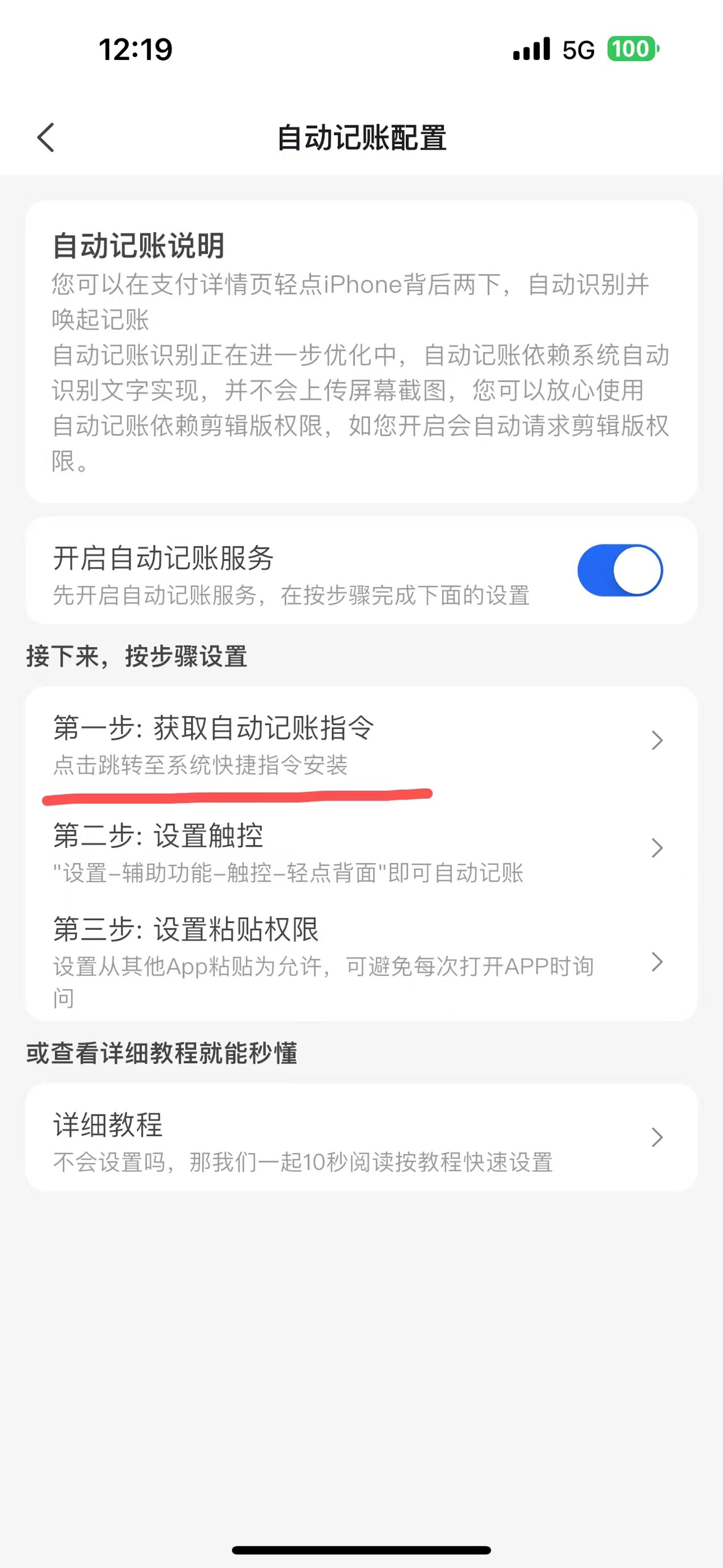
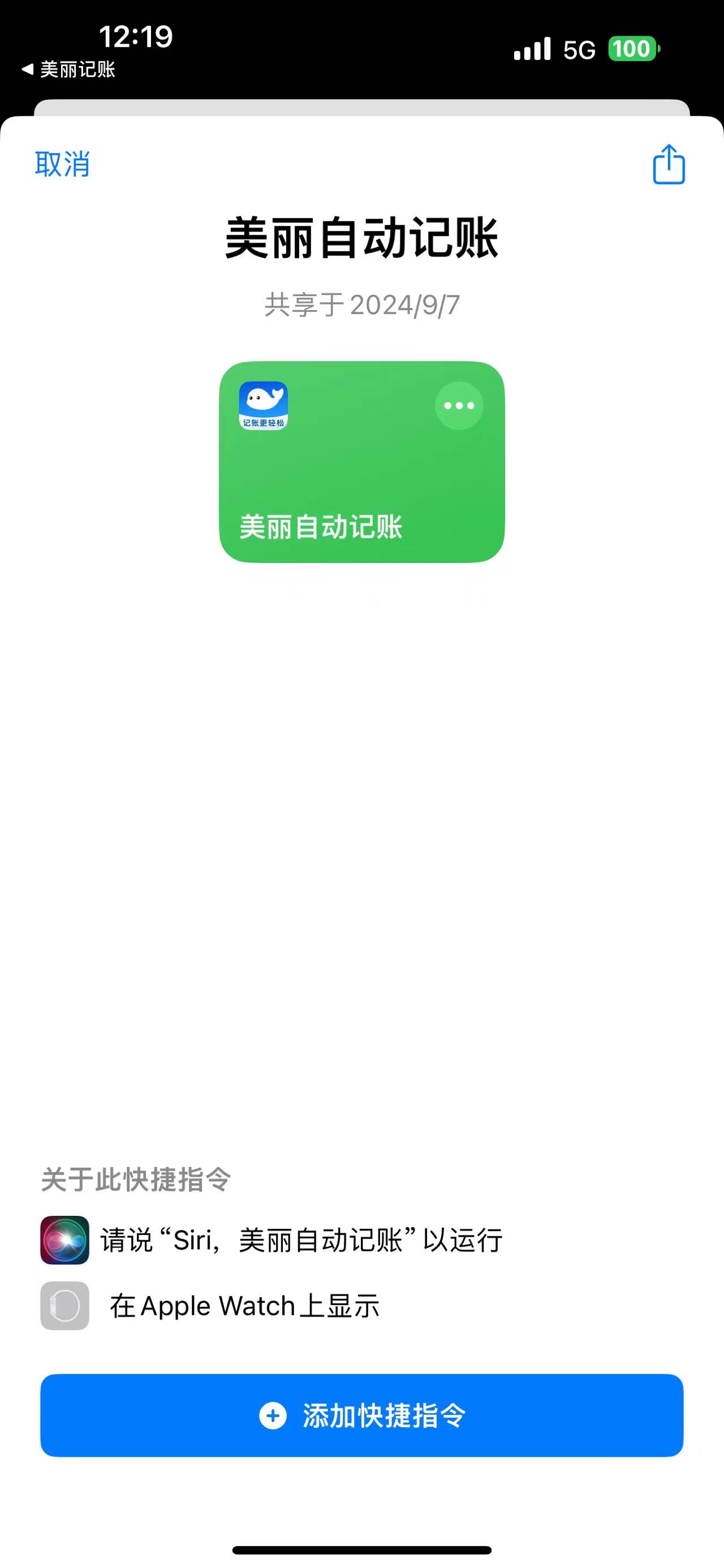 After installation, you will see a Meili Auto-Bookkeeping shortcut in your Shortcuts app.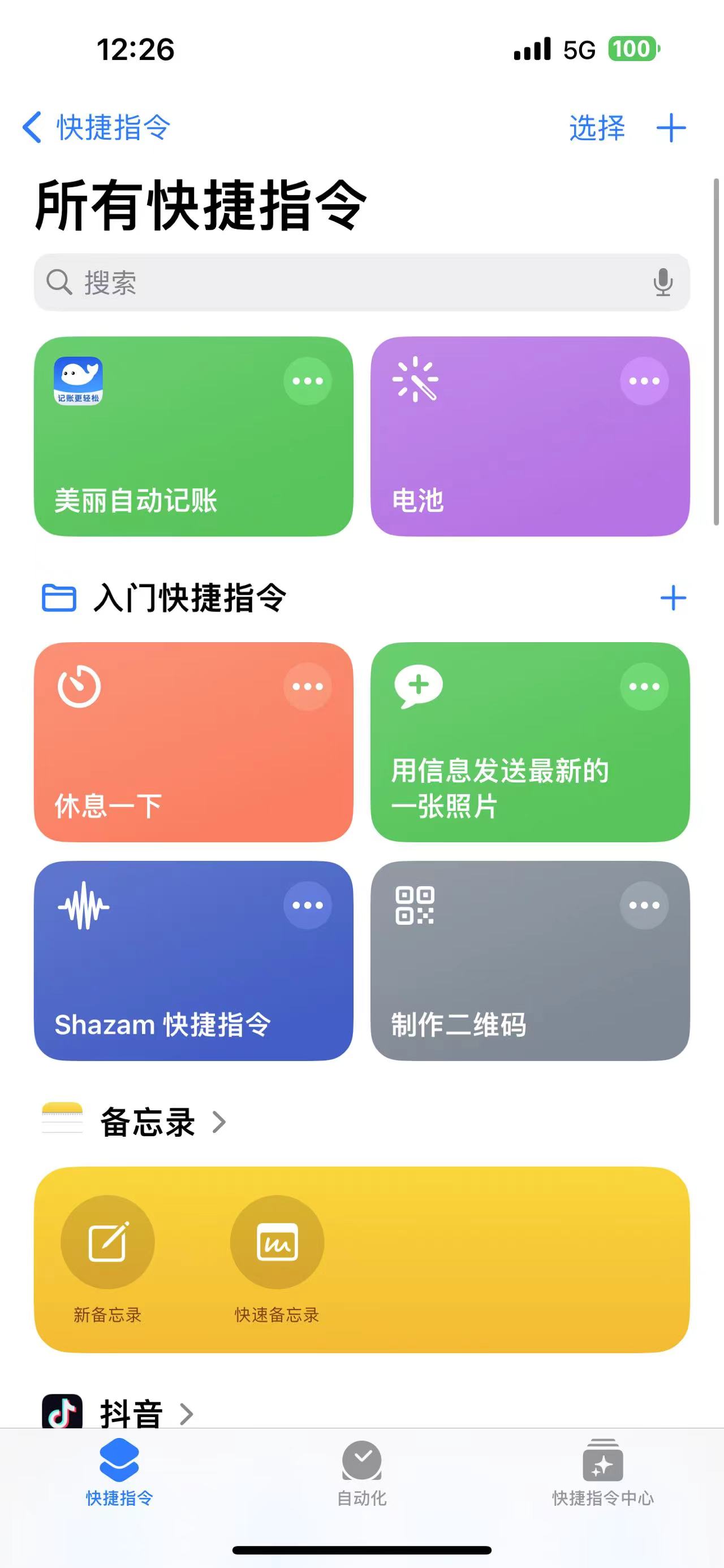
Step 2: Set Up Touch (Back Tap)
On iOS, you can set up a touch gesture to quickly execute the shortcut. Follow the path below, then tap the back of your iPhone twice to trigger auto-bookkeeping.
Go to System Settings > Accessibility > Touch > Back Tap > Double Tap and select Meili Auto-Bookkeeping.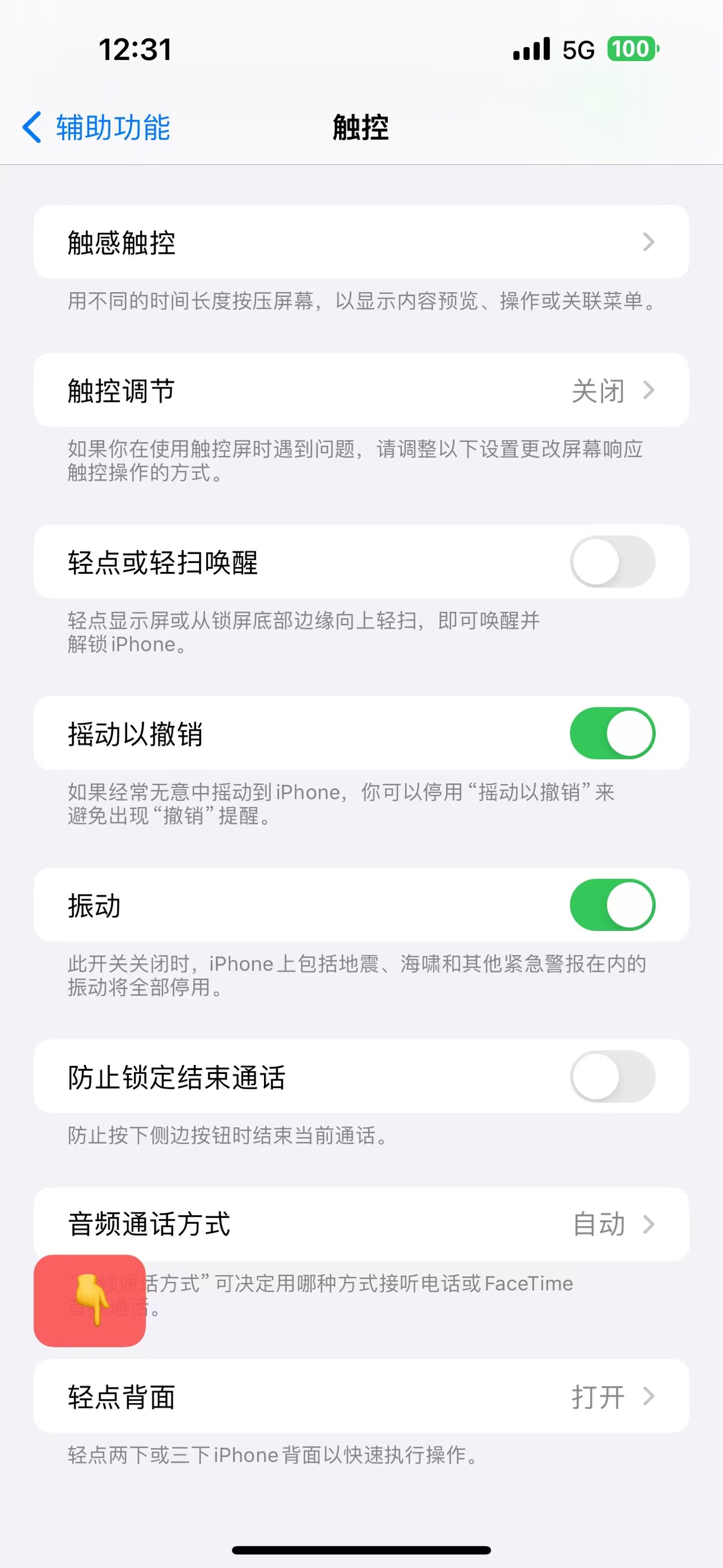
Test the Back Tap
After selecting Meili Auto-Bookkeeping, go back to Touch settings. Double-tap the back of your iPhone to test it. When the screen shows the effect below, it's working.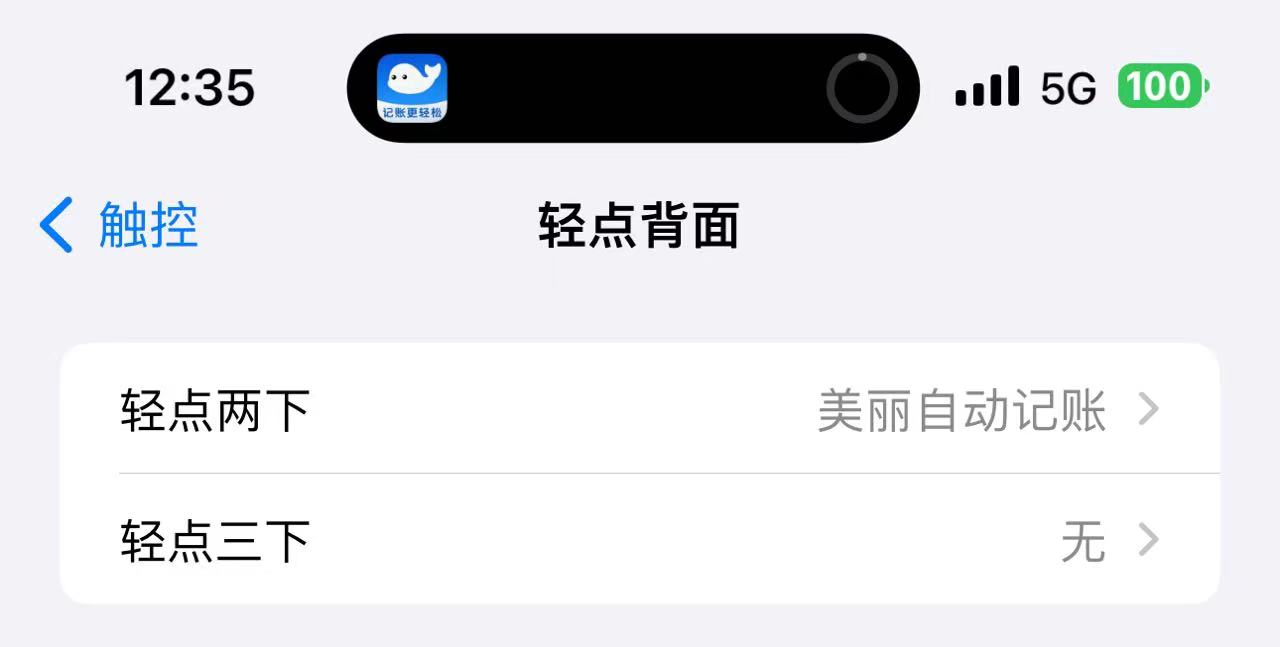 The Shortcut will then open the app automatically and prompt you to allow "Meili Ledger wants to paste from Shortcuts" — tap Allow.
Step 3: Set Paste Permission
Go back to the auto-bookkeeping settings and tap Step 3. It will take you to the app settings. Tap Paste from Other Apps and select Allow.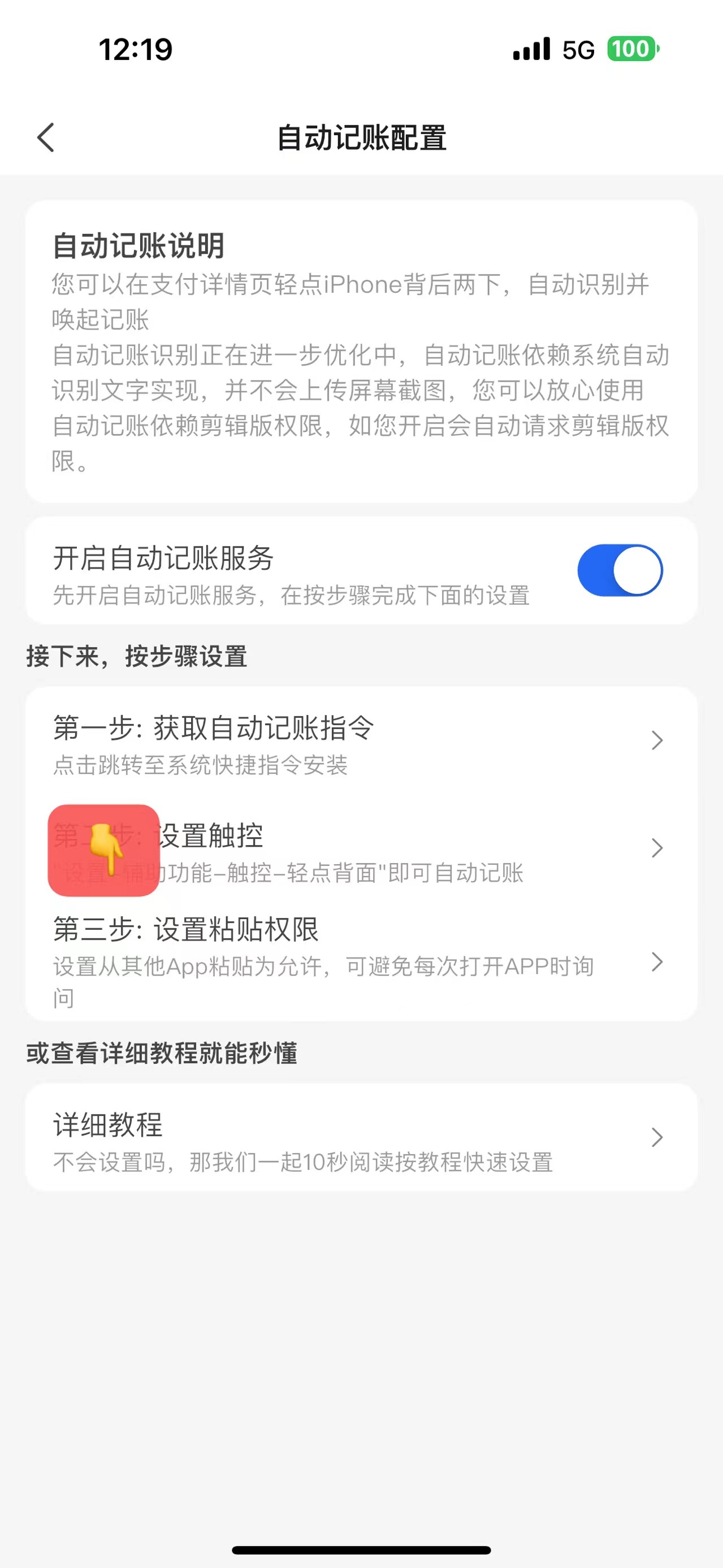 The text recognized by the Shortcut is first placed in the clipboard. When you enter Meili Ledger, the app reads the clipboard text. Therefore, Meili Ledger needs permission to Paste from Other Apps. By default, it asks every time. You can change this to always allow in settings. (This is required from iOS 16 onward; iOS 15 does not need this step.) If you tap Deny, auto-bookkeeping will not work properly. If set to Ask, the app will prompt you every time it opens, which is not a great experience.
Note: The Paste permission only appears after the Shortcut shows the paste prompt. So be sure to follow the steps in order. If it doesn't appear, repeat Step 2 (Test Back Tap).